
Lesson 13 of 14 · Part 1 of 2
Let your website introduce you
Your website meets the client before you call. Check what a visitor sees, test the form, share the link, then call back anyone who asks for a quote.
Do it in Genius
Website Website template Open Website
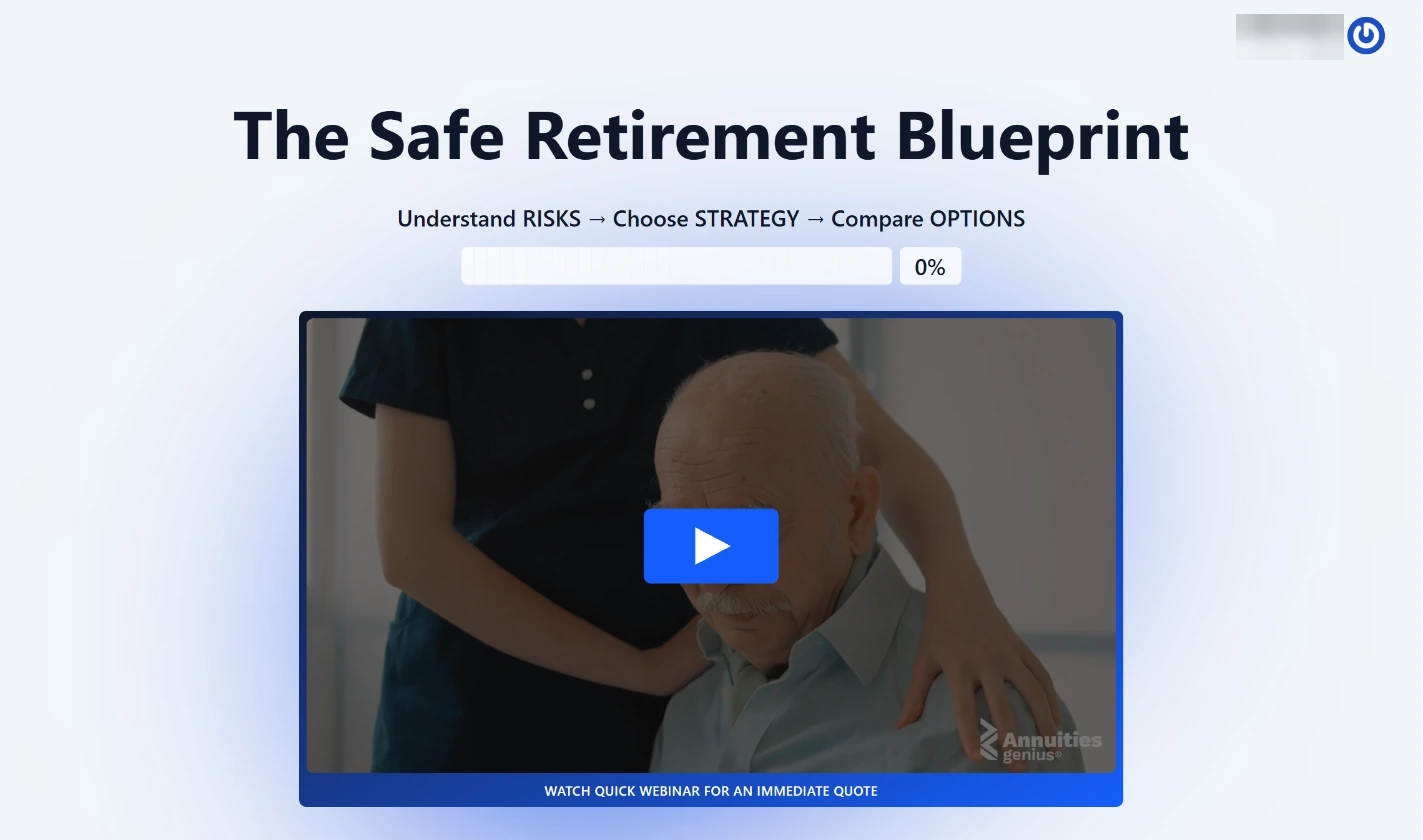
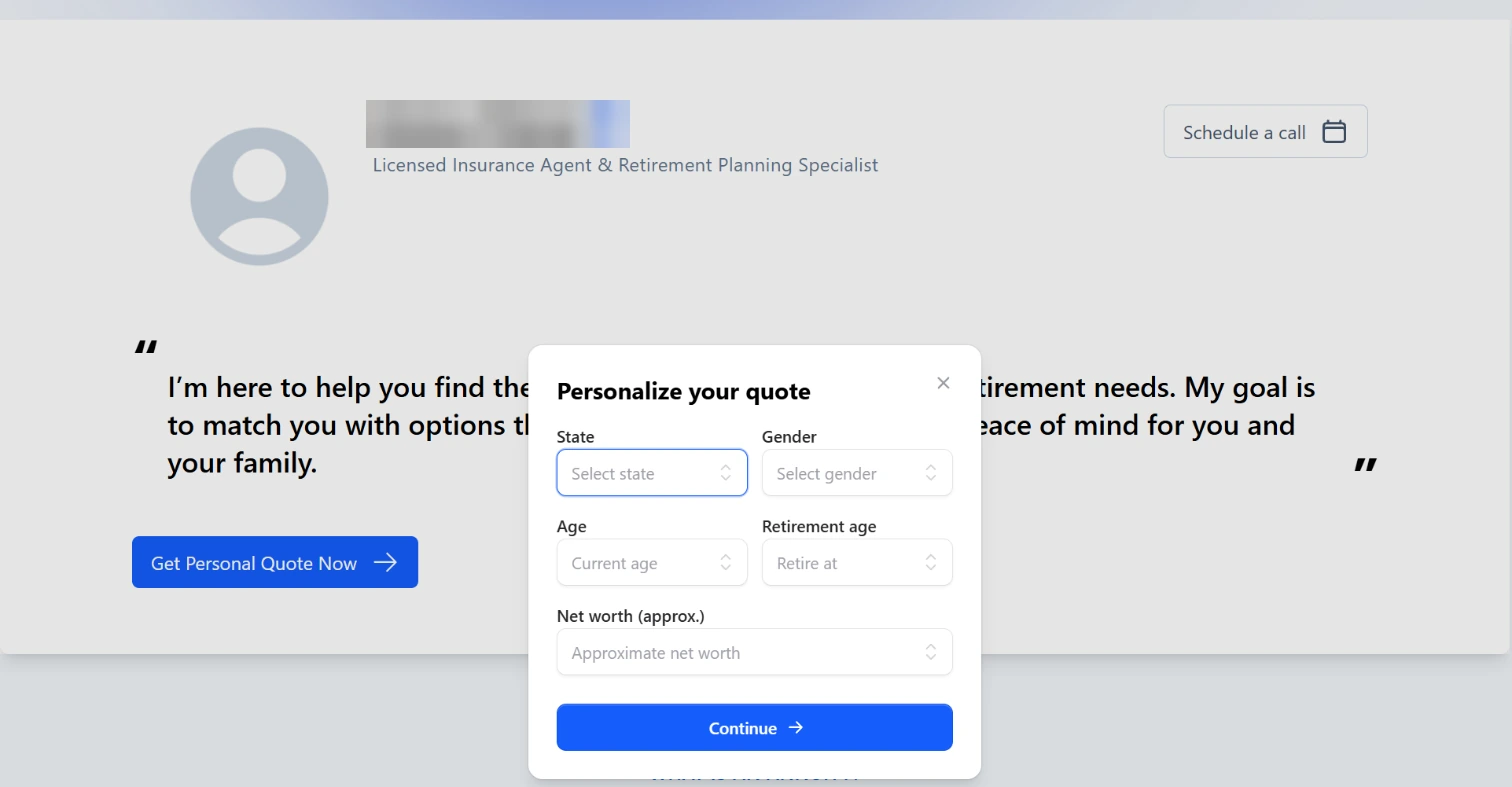
Practice Client, 3 Nov 2026: Open Website shows a quick webinar, and a Personalize your quote form pops up. Schedule a call sits lower.
Open Website in Genius (opens the app in a new tab)In the app: CRM → Website
 (opens full size in a new tab)
-
1.
On Website, click Open Website. A visitor sees a short webinar, a quote form and a Schedule a call button.
Open Website shows the full site.
-
2.
Send yourself a test. Fill in the PDF report form at the bottom of your site with your own details.
Genius sends a text or email alert when a visitor submits their details. Send yourself a test and watch for it.
-
3.
Once your IMO and the carriers have reviewed it, click Copy Link and send it to clients. Schedule a call opens your booking page.
Switching the Website template changes your live site at once. Switch only when you mean to.
-
4.
If a request reaches you, call within one to three days. Ask what made them fill it in. Read any answers back.
Ask "why that?" on each answer. Make no recommendation by phone: end by sending your booking page.
See also:
 (opens full size in a new tab)
Sources
- Annuities Genius app, checked 3 Nov 2026
- Annuities Genius help: Where to Locate and How to Set Up Your Personal Website
- NAIC Model 570: advertisements of annuities
- Medicare Advantage rule: no annuity marketing in a personal marketing appointment, 42 CFR 422.2264(c)(3)(iii)(C)
- Part D rule: no annuity marketing in a personal marketing appointment, 42 CFR 423.2264(c)(3)(iii)(C)